Getting Started With Blue Cardinal
Blue Cardinal is a platform built to help everyday families stay on top of their finances, increase financial literacy, and to gain control of their financial journeys. To that end, Blue Cardinal’s aim is to provide a suite of tools and educational content over the next coming years.
All journeys start with the first step. Ours is with the initial version of our budgeting tool.
What is a budget?
A budget is a written plan that allows you to decide how to allocate your money in order to achieve your goals. Budgets come in all shapes and sizes, from very simple to extremely complex. It all depends on your needs, and what goals you’re working towards.
For example, if you are just getting started, maybe you just want to track what money is coming in and what you’re spending that money on. A step further would be to define some basic goals and start to shift your income and spending to work towards your new goals.
A more seasoned budgeter would likely have several goals (short, medium, and long term) that they are tracking towards. They would also have formed good habits and have a better handle on how to weather life’s unforeseen storms during different seasons of their lives. Likely, they would have a fully funded emergency fund in place, as well as separate accounts for everyday spending, savings goals, and investing targets.
The main point here is that a budget is a plan. Your plan! Not your neighbors, not your friends, yours!
What is a budget category?
In Blue Cardinal, a budget category is a grouping of transactions that are associated with a budget. How you group your transactions is up to you, but there should be a logical reason as to why the transactions are grouped together.
Here are some examples of budget categories:
| Category Name | Type | Description |
|---|---|---|
| Job | Income | All money coming in from your main source of income |
| Side Hustle | Income | All money coming in from one or more of your side hustles. |
| Subscriptions | Expense | All household subscriptions. Example: Amazon Prime, Blue Cardinal, Spotify, Netflix, Lawn care, Pest control. |
| Groceries | Expense | All food that was not spent in a restaurant |
| Restaurants | Expense | Eating out expenses |
| Utilities | Expense | Utilities such as water, eletrical, and trash |
What is a budget category group?
In Blue Cardinal, a category group is a grouping of budget categories. That’s it! This allows you to segment your categories to larger overall groups.
To give an example, based on the categories listed above, here’s how you might group those categories:
| Category Group Name | Type | Description | Categories |
|---|---|---|---|
| All Income | Income | All of my family’s household income. | Job, Side Hustle |
| Food | Expense | All food related expenses. | Groceries, Restaurants |
| House Upkeep | Expense | Any expense relating to upkeep of my household. | Utilities, Subscriptions |
How to link accounts to a budget?
In Blue Cardinal, it’s possible to have multiple budgets. You’ll also likely have multiple accounts that Blue Cardinal is aware of. In order to associate a transaction with a budget category, you’ll need to link one or more accounts to the budget in which the category belongs.
Linking an account to a budget is different from linking an account with Blue Cardinal. Linking an account to a budget comes after the account is manually created or linked from your bank to Blue Cardinal.
Why would your family have multiple budgets? Great question!
There could be several reasons why you would want separate budgets. Let’s say that you want your family’s budget separate from your business’s budget. Or perhaps you are teaching your teenage kids to be more responsible, so they have their own budgets within Blue Cardinal. But, you’re still giving them support and guidance.
Another reason could be to have an example budget in which you use to teach other people in your network on how you do your family’s budgeting. This has the benefit of not showing your audience your actual numbers, for privacy reasons.
Whatever the reason is, Blue Cardinal facilitates the different ways you might want to make your plans.
How to log transactions?
There are currently two ways to log transactions: via the account, or in a budget with one or more linked accounts.
After your account is created within Blue Cardinal, you can add transactions directly to the account. If that account is linked to one or more budgets, then you can add transactions to the account via the linked budgets. In either scenario, the transaction shouldl be logged with the proper account.
Once transactions are logged, the budget summary updates in real-time.
One final note here. When logging transactions within a budget, the transaction is associated to a specific month within that budget. For example, if you log a transaction in a budget for the month of September 2023, and you switch months to view your budget summary for August 2023, you will not see that transaction in August’s budget summary. However, you can still view all of your account transactions via that account’s transactions page.
Reading the budget summary.
Once you start logging transactions, you will see that your budget summary will come to life. There are four main sections to the budget summary; the budget summary tiles, the income / expense summary breakdown, and the income and expense sections.
Budget Summary Tiles
As of this writing, there are three main tiles within the budget summary: Planned, Actual, and Planned Vs Actual.
The Planned Tile
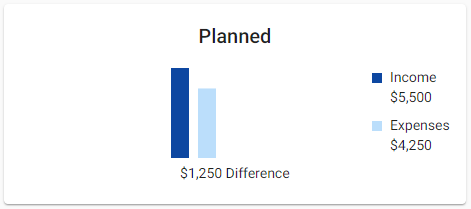 The planned tile shows you a summary of how much you plan to bring in as well as how much you plan to spend for the month. It also provides you with the difference between the two. If the difference is negative, then you plan to spend more than you plan to bring in. If the difference number is positive or zero (zero based budgeting), then you plan to bring in more than you plan to spend. That’s a great position to be in!
The Actual Tile
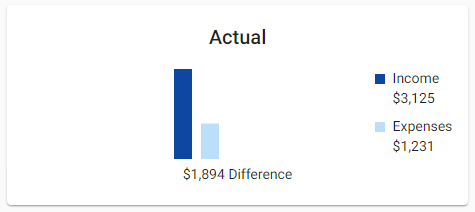 The actual tile shows you a summary of how much you’ve actually brought in compared to how much you’ve actually spent. This is based on the logged transactions which are associated with a budget category for the month.
Just like the planned tile, the actual tile has a difference calculation. If this difference is negative, then you have spent more than you’ve brought in. This could be due to timing. For example, if you are paid on a bi-weekly basis, then you may only have two income transactions versus many more expense related transactions for the month.
The Planned Vs Actual Tile
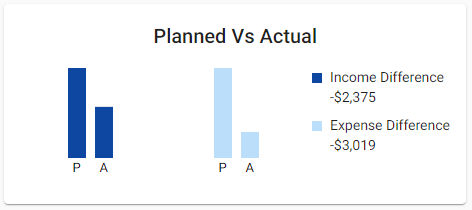 This tile describes the difference between your planned and actual incomes and expenses. In other words, for your income, did you bring in how much you planned for? Comparatively, for your expenses, did you spend around your planned amounts?
If your income difference is positive, congratulations! You’ve brought in more than you’ve planned for. Alternatively, if your income difference is a negative number, it could mean that you brought in less than you planned for. This could also be due to timing. For example, if you are paid on a bi-weekly basis, then the income difference may be negative for the majority of the month. This could also be thought of as a signal on how much income is still incoming. Pun intended!
For the expense difference, if the difference is a negative number, then that’s a good thing! That means that you haven’t spent all that you’ve planned on spending for the month. Alternatively, if your expense difference is positive, then you’ve spent more than you planned to for the month.
Income and Expense Summary Breakdown
The income and expense summary provide a drill down into your spending holistically. It provides a nice graphic that proportionally reflects what you spent your money on or where your income came from.
Once you have drilled down to the transaction level, you can consolidate your transactions to view the summary grouped by merchant names.
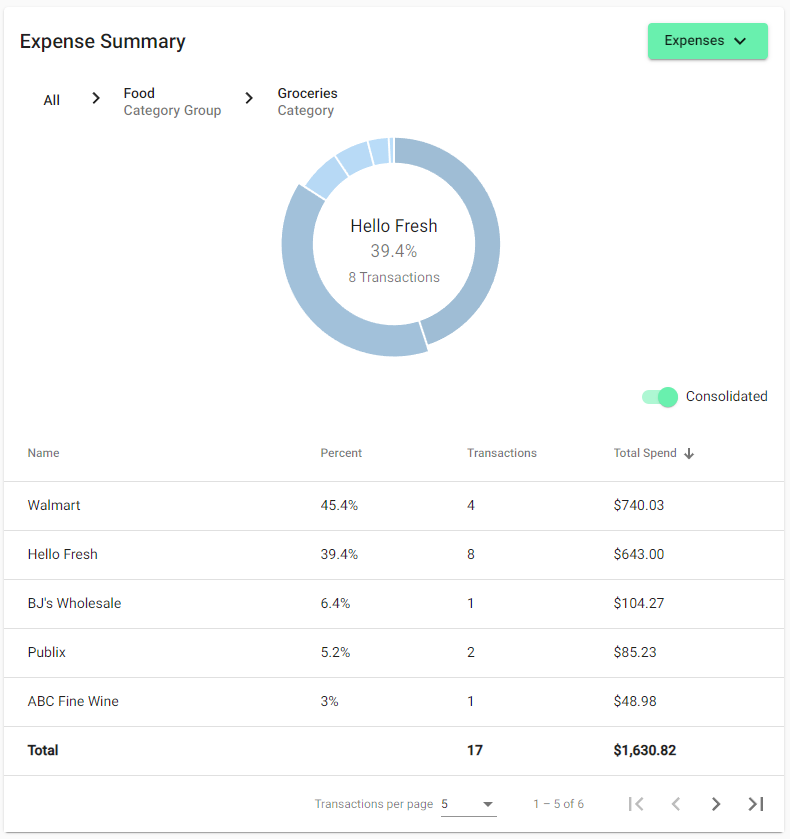
As of the time of this writing, this section is only available on desktop web browsers.
Income and Expense Sections
Lastly, the income and expense sections display summary level information with respect to the budget categories.
Each category is grouped within a category group and displays the following several bits of information:
- The category name
- The category description (if provided)
- The actual versus planned spending amounts
- The amount remaining (planned - actual)
The amount remaining value varies slightly for income type categories versus expense type categories. For income type categories, if the amount remaining is negative, this conveys how much is left to bring in for the month. Alternatively, for expense type categories, if the remaining amount is negative, that signifies that you have spent more than planned, conveying overspending for that category.
Next Steps
Now that you have the basics, feel free to hop into Blue Cardinal and get started!
One final remark before you go… as was mentioned all the way at the top, we are on a journey to help you stay on top of your finances, and to be there for you along your own financial journey. We look forward to working alongside you!